

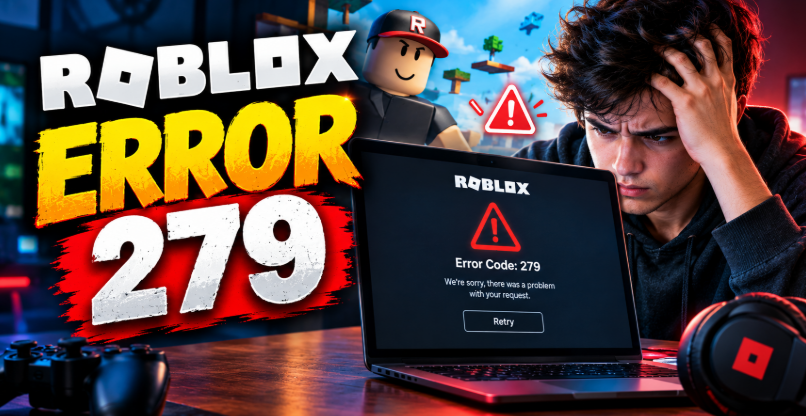

Roblox error 279 usually appears when your device cannot establish a reliable connection to a Roblox game server. The error often comes with ID 17 and a message indicating a failed connection attempt. Network interruptions, firewall restrictions, VPN settings, and temporary server problems can all contribute to the issue. Fortunately, you can often resolve it by checking your connection, restarting Roblox, adjusting network settings, or testing another network.
The right fix depends on where the problem originates. If Roblox works on another device but not your computer, your local settings may be responsible. However, if multiple devices cannot join games, your router, internet provider, or Roblox services could be involved. Understanding these possibilities helps you avoid unnecessary changes and get back into your favourite experiences sooner.
What Is Roblox Error 279?
Roblox error 279 is a connection-related error that prevents a player from joining or connecting properly to a game. Roblox needs a stable connection between your device and its servers to load an experience. When that connection fails or takes too long, the game may display error code 279.
Players sometimes see the message alongside ID 17, which is associated with a failed connection attempt. Although the message points towards a connectivity problem, it does not identify one universal cause.
Your internet connection might be unstable, but that is not the only possibility. A firewall may block required traffic, a VPN may interfere with routing, or a temporary service disruption may prevent the game from loading. Therefore, the most effective approach is to test the simplest possibilities before changing advanced settings.
Why Does Roblox Error 279 Happen?

Unstable Internet Connection
A weak Wi-Fi signal, packet loss, or frequent disconnections can interrupt communication with Roblox servers. Your browser and other websites might still work because different online services respond differently to network conditions.
Firewall or Security Software Restrictions
Windows Firewall, antivirus software, or network security tools may interfere with Roblox connections. This can happen after a security setting changes or when an application is incorrectly classified.
VPN or Proxy Interference
A VPN or proxy changes how your device connects to online services. Depending on its server, routing, or network restrictions, it may introduce connection problems when you try to join Roblox experiences.
Corrupted Roblox Installation or Temporary Files
Damaged application files, an outdated installation, or temporary software problems can prevent Roblox from connecting correctly. Reinstalling the application may help when simpler troubleshooting steps fail.
Roblox Server or Network Routing Problems
Sometimes the issue originates outside your device. A Roblox service disruption or a routing problem between your internet provider and the game servers can stop connections even when your internet appears normal.
How to Fix Roblox Error 279
Restart Roblox and Your Device
Begin by closing Roblox completely. On Windows, open Task Manager if necessary and end any remaining Roblox processes. Then reopen the application and try joining the experience again.
If the error persists, restart your computer or mobile device. This simple step can clear temporary software problems and refresh network connections without changing your settings.
Restart Your Router
Unplug your router from its power source, wait approximately 30 seconds, and reconnect it. Allow the router to finish restarting before launching Roblox again.
This process can resolve temporary router issues and refresh your connection to your internet provider. If other devices are also experiencing connection problems, this step becomes especially useful.
Avoid repeatedly restarting your router if the connection continues to fail. Instead, check whether other online games and services work normally to determine whether the problem extends beyond Roblox.
Check Your Internet Connection
Test a few websites or online services before trying Roblox again. If they load slowly or disconnect frequently, troubleshoot your internet connection first.
If possible, connect your computer through Ethernet instead of Wi-Fi. A wired connection removes wireless interference as a potential cause. Alternatively, move closer to your router or switch to a less congested Wi-Fi network.
You can also test Roblox using a mobile hotspot, keeping in mind that mobile data charges and usage limits may apply. If Roblox works on the hotspot but fails on your usual connection, your home network or internet provider may be contributing to the problem.
Check Roblox Server Status
Before changing security settings or reinstalling the application, check whether Roblox is experiencing a service disruption. If its services are unavailable or degraded, your device may be unable to join experiences regardless of your local settings.
When a wider outage is confirmed, wait for the service to recover and try again. Repeatedly reinstalling Roblox will not resolve a server-side problem.
If the status page reports normal operation, continue with the remaining troubleshooting steps. Individual experiences or particular network routes can still have problems even when the overall service appears operational.
Allow Roblox Through Windows Firewall
Windows Firewall can sometimes prevent an application from establishing the connections it needs. Check whether Roblox is allowed through your firewall before disabling any security protection.
Open Windows Security and find the firewall settings. Select the option for allowing an app through the firewall, then check whether the correct Roblox application entry is permitted on the appropriate network profiles.
Only change the setting for a legitimate Roblox application you recognise. If you use third-party antivirus software, review its application permissions as well.
Do not turn off your firewall permanently or allow unknown programs simply to remove error 279. If your device belongs to a school or workplace, an administrator may control these settings.
Disable Your VPN or Proxy Temporarily
If you use a VPN or proxy, disconnect it temporarily and test Roblox through your normal connection. Some VPN routes or network configurations may interfere with game connectivity.
If Roblox starts working, the VPN connection may be contributing to the problem. You can try a different VPN server or review its network settings, provided doing so complies with your network’s rules.
If you do not use a VPN, skip this step. There is no need to install one just to troubleshoot Roblox error 279.
Update or Reinstall Roblox
An outdated or damaged installation can sometimes cause connection problems. First, check that you are using the current Roblox application and install any available updates.
If the error continues, uninstall Roblox, restart your device, and install it again through an official Roblox distribution channel. This replaces application files that may have become damaged.
Reinstallation will not normally remove the problem if your router, firewall, or Roblox services are responsible. For that reason, try the network checks first and use this step when the evidence points towards the application itself.
Flush the DNS Cache on Windows
Windows stores DNS information to help your device find online services. Occasionally, clearing the local DNS cache can help when name-resolution problems contribute to a connection issue.
Open Command Prompt as an administrator and enter the following command:
ipconfig /flushdns
Press Enter and wait for Windows to confirm that the DNS resolver cache has been flushed. Then restart Roblox and test the connection again.
This command does not repair every network problem, and it will not fix an outage or a firewall block. If the error remains, move on to the next step rather than repeating the command unnecessarily.
Try Another Network or Device
Testing another network is one of the quickest ways to narrow down the cause. For example, try joining Roblox through a mobile hotspot or another trusted Wi-Fi connection.
If Roblox works elsewhere, investigate your original network, router, DNS configuration, or internet provider. If the same error appears across several devices and networks, a Roblox service issue or an account-specific problem may deserve further investigation.
Change only one variable at a time when possible. This makes it easier to identify which action actually resolves the error.
How to Fix Roblox Error 279 on Mobile and Console
On Android or iPhone, close Roblox, reopen it, and check whether your Wi-Fi or mobile data connection is stable. Install available application updates and restart your device if the problem continues. You can also test a different network to distinguish an application issue from a connection problem.
On a console, confirm that the console’s internet connection works and that its online services are available. Restart the console and router, then check for Roblox or system updates where supported.
The exact settings vary by device and operating system. Avoid applying Windows-specific firewall commands to mobile devices or consoles, because those instructions do not apply to their network settings.
Conclusion
Roblox error 279 usually indicates that Roblox cannot establish or maintain the connection needed to join a game. The cause may be an unstable internet connection, a firewall restriction, VPN interference, damaged application files, or a temporary service disruption.
Start by restarting Roblox and your router, checking the service status, and testing your connection. If necessary, review firewall permissions, temporarily disconnect a VPN, update the application, or flush the Windows DNS cache. Testing another network or device can also reveal where the problem originates.
Most importantly, avoid making unnecessary security changes before identifying the likely cause. A systematic approach gives you a better chance of fixing Roblox error 279 safely and returning to your game.
FAQs
What does Roblox error 279 mean?
Roblox error 279 means your device is having trouble connecting to a Roblox game server. It can result from network interruptions, security restrictions, routing issues, or temporary service problems.
How do I fix Roblox error 279 quickly?
Restart Roblox and your router, then check whether Roblox services are working. If the error remains, test another network and review your firewall or VPN settings.
Is Roblox error 279 caused by my internet?
Your internet connection can cause the error, especially when it experiences packet loss or frequent interruptions. However, firewall restrictions, application problems, server disruptions, and network routing issues can produce similar symptoms.
Why does Roblox error 279 keep appearing?
Repeated errors may indicate an ongoing network problem, restrictive security settings, or a persistent application issue. Test another network and device to determine whether the problem is local or more widespread.
How do I fix Roblox error 279 on Windows 11?
Restart your computer and router, check Roblox service availability, and confirm that Windows Firewall permits the legitimate Roblox application. If necessary, update or reinstall Roblox and run ipconfig /flushdns in Command Prompt.
Can a VPN cause Roblox error 279?
Yes, a VPN or proxy can sometimes interfere with the connection to Roblox servers. Disconnect it temporarily and test Roblox again. If the game works, investigate the VPN’s server or network configuration.
For more updates visit: RANKIVO