


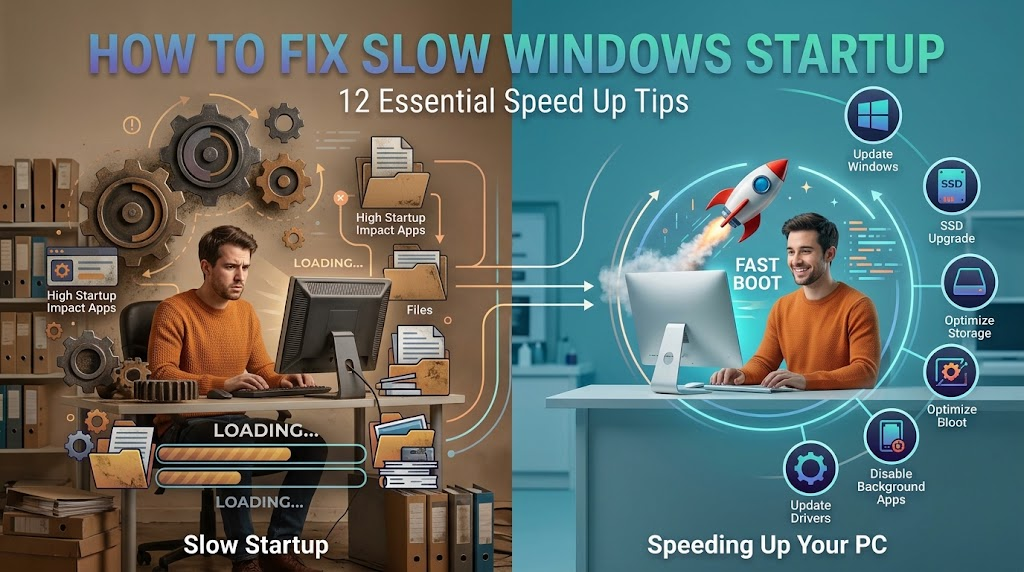

A slow Windows startup can make even a powerful computer feel frustratingly sluggish. You may wait several minutes before the desktop becomes responsive, or watch programs load one after another after signing in.
Fortunately, you do not always need new hardware to solve the problem. Unnecessary startup apps, low storage, outdated drivers, background processes and system issues can all increase boot time.
If you are wondering how to fix slow startup Windows problems, the best approach is to identify what is slowing the boot process before making major changes. The following methods can help you improve startup performance safely.
Check Which Apps Start With Windows
One of the most common reasons for a slow Windows startup is having too many applications launch automatically.
Many programs add themselves to the startup process after installation. Cloud storage tools, messaging apps, game launchers and other utilities may start even when you do not need them immediately.
Open Task Manager by pressing Ctrl + Shift + Esc. Select the Startup apps section and review the applications that launch when Windows starts.
Pay particular attention to applications marked with a high startup impact. If you rarely need a program immediately after signing in, disabling its startup entry can reduce the number of processes Windows must load.
Do not disable essential Windows components or security software unless you know exactly what the program does.
Restart Your PC Instead of Always Using Sleep
Sleep is convenient because it allows you to continue working quickly. However, regularly relying on sleep instead of restarting can sometimes make troubleshooting performance problems more difficult.
A normal restart gives Windows an opportunity to close running processes and reload system components. It can also clear temporary issues that may contribute to unusual startup behaviour.
If your computer has become progressively slower, restart it and check whether the boot time improves afterwards.
Free Up Storage Space

A nearly full system drive can affect overall Windows performance. Windows needs available storage for temporary files, updates, caching and other system operations.
Open Windows Settings and check your available storage. Remove files and applications you no longer need.
Windows also provides temporary-file cleanup options through its storage settings. Clearing unnecessary temporary data can recover space and reduce clutter on the system drive.
However, avoid deleting unfamiliar system files manually. If you are unsure about a file, leave it alone rather than risking Windows stability.
Disable Unnecessary Background Apps
Some applications continue running in the background even when you are not actively using them.
These background processes can consume memory, processor resources and storage activity. When many applications compete for resources during startup, your computer may take longer to become fully responsive.
Review which applications are allowed to run in the background and disable unnecessary permissions where appropriate.
This is particularly useful if your PC becomes usable only after several minutes despite Windows itself appearing to have finished loading.
Update Windows
An outdated Windows installation can contribute to performance problems, compatibility issues and startup errors.
Open Windows Update in Settings and check for available updates. Install appropriate updates and restart your computer when required.
Windows updates can include performance improvements, security fixes and hardware compatibility changes. Keeping the operating system current is therefore an important part of maintaining reliable startup performance.
If the problem started immediately after a major update, however, investigate the specific change before repeatedly installing additional software.
Update Your Drivers
Hardware drivers allow Windows to communicate correctly with components such as graphics cards, storage devices and network adapters.
Outdated or problematic drivers can sometimes cause unusually long startup times or delays immediately after signing in.
Windows Update can provide many driver updates automatically. You can also check the manufacturer’s support software or website for your specific hardware.
Avoid downloading drivers from unknown websites. Incorrect or modified drivers can create more problems than they solve.
Check Your System Drive
The type and condition of your storage drive can have a major effect on Windows startup speed.
Computers using an SSD generally start Windows much faster than systems relying on older mechanical hard drives. If your computer still uses an HDD as its main system drive, upgrading to an SSD can produce a substantial improvement in everyday responsiveness.
You should also check whether the drive is experiencing errors or unusual performance problems. Persistent freezing, clicking noises from an HDD or frequent disk errors can indicate a hardware problem rather than a simple Windows setting.
Scan Windows for Malware
Malware can consume system resources and interfere with normal Windows operations.
If startup suddenly became much slower, run a security scan using a trusted security solution. Windows Security includes built-in protection that can detect many common threats.
Do not install several unknown antivirus programs at the same time. Multiple security applications can compete for resources and sometimes create additional performance problems.
If a scan detects malware, follow the security software’s recommended removal process and restart the computer afterwards.
Reduce Visual Effects
Windows includes animations, transparency and other visual effects that make the interface feel more polished. On older or lower-powered computers, reducing some of these effects may help responsiveness.
Search Windows for performance settings and review the visual-effects options. You can choose settings that prioritise performance instead of appearance.
This will not normally transform a severely slow computer by itself. However, it can help when Windows is running on limited hardware.
Check for Fast Startup Problems
Windows includes a feature called Fast Startup that is designed to shorten boot times by saving certain system information when the computer shuts down.
Although it can help some systems start faster, Fast Startup can occasionally contribute to unusual shutdown, update or hardware-related behaviour.
If you have tried other solutions without success, you can test Windows with Fast Startup disabled. Restart the computer afterwards and compare the startup behaviour.
If disabling it makes no difference, you can restore the previous setting.
Remove Unnecessary Software
Installed applications can affect startup even when you rarely use them.
Open the installed-apps section in Windows Settings and review software you no longer need. Removing unused applications can reduce background processes and prevent unnecessary startup entries.
Be careful with unfamiliar programs, especially utilities related to your hardware. If you do not recognise an application, research its purpose before uninstalling it.
Consider a Clean Boot
If Windows remains slow despite disabling obvious startup applications, a clean boot can help identify whether a third-party service is responsible.
A clean boot starts Windows with a limited selection of services and startup programs. If startup becomes significantly faster, a third-party application or service may be causing the delay.
You can then gradually identify the problematic software and decide whether to update, reconfigure or uninstall it.
This method requires more care than simply disabling a startup app, so avoid changing system services randomly.
When Hardware May Be the Problem
Software optimisation cannot solve every slow-startup problem. Sometimes the hardware itself is responsible.
An older HDD is one of the most common limitations. Insufficient RAM can also make Windows struggle when several applications launch simultaneously.
If your computer has an aging storage drive, frequent disk errors or consistently poor performance despite a clean Windows installation, hardware replacement may provide a better solution than further software tweaks.
An SSD upgrade is often particularly worthwhile on older computers that still use a mechanical hard drive.
How to Fix Slow Startup Windows Problems Permanently
The best solution depends on what is causing the delay. Start by checking startup applications and available storage because these are simple areas to investigate.
Next, make sure Windows and important drivers are updated. Check for malware and review unnecessary background applications. If the computer remains slow, examine the storage drive and consider whether ageing hardware is limiting performance.
Avoid using random registry cleaners or aggressive optimisation programs. They rarely provide a reliable solution and can introduce new problems.
Conclusion
Learning how to fix slow startup Windows problems starts with finding the actual cause. Too many startup apps, limited storage, background processes, outdated drivers and older hardware can all contribute to slow boot times.
Begin with safe changes such as disabling unnecessary startup programs, freeing storage and updating Windows. If the problem continues, investigate the storage drive, malware, drivers and hardware.
With the right approach, you can often make Windows start faster without replacing the entire computer.
FAQs
Why is my Windows startup suddenly so slow?
A sudden slowdown can result from a new startup application, Windows update, driver problem, malware, low storage or hardware issue. Check recent changes and review Task Manager’s startup apps first.
How do I make Windows start faster?
Disable unnecessary startup applications, keep Windows updated, maintain enough free storage and remove software you no longer use. An SSD can also significantly improve startup performance on older PCs.
Does having too many startup apps slow Windows?
Yes. Applications that launch automatically consume system resources while Windows is starting. Disabling unnecessary startup programs can reduce the workload during boot.
Why does Windows take so long to load after entering my password?
If the desktop appears but remains slow after signing in, background applications and services may be loading. Check startup apps and background processes to identify what is consuming resources.
Can low storage make Windows startup slow?
Yes. A nearly full system drive can reduce available space for temporary files and other Windows operations. Freeing unnecessary storage can help overall system performance.
Does an SSD make Windows boot faster?
Yes. SSDs generally provide much faster data access than mechanical hard drives. Moving Windows from an HDD to an SSD can make startup and everyday application loading considerably faster.
For more updates visit: RANKIVO