


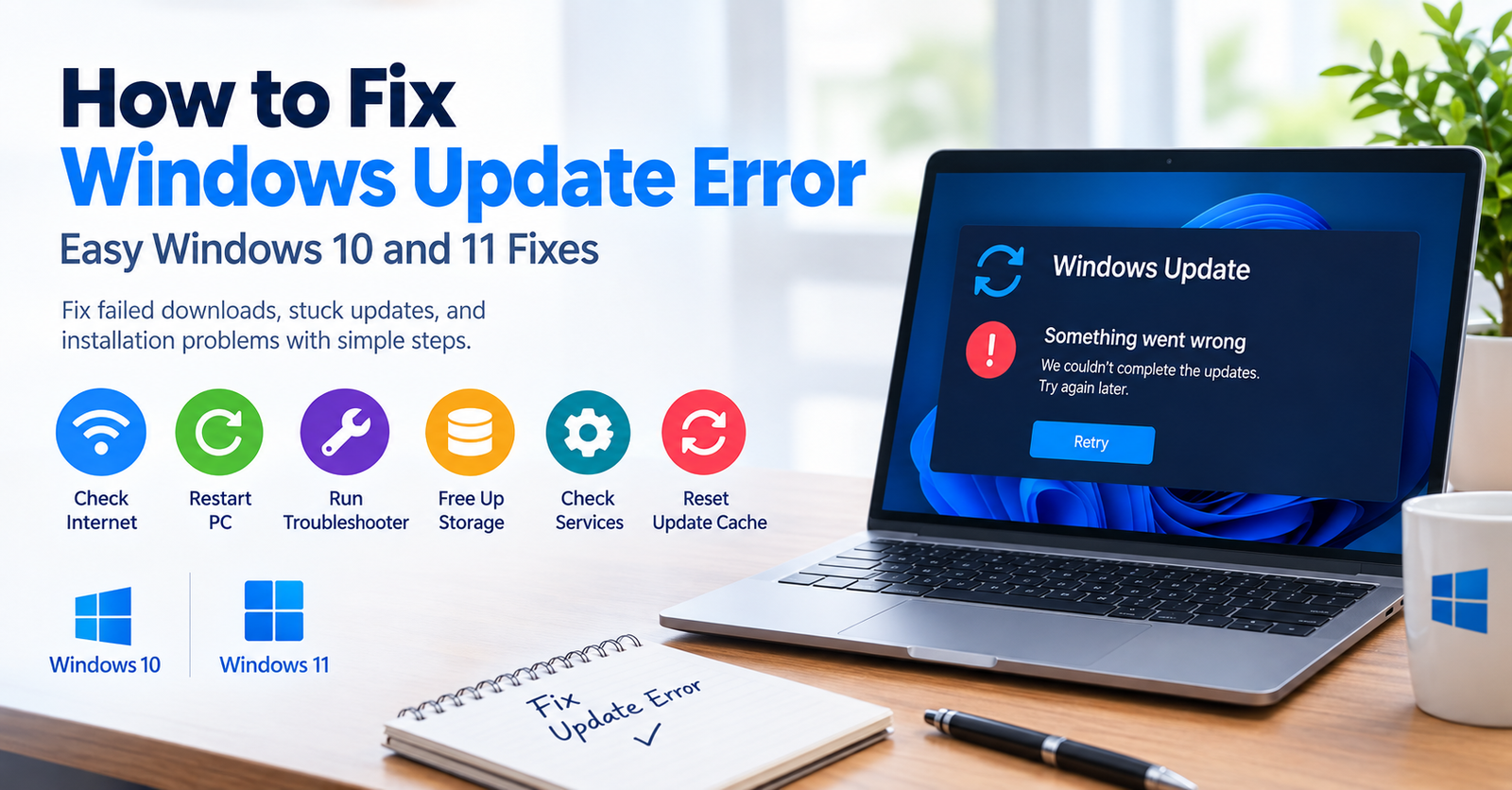

Windows updates help keep your computer secure, stable, and compatible with newer software. However, an update can sometimes fail to download or install. You may also see an error code, a stuck percentage, or a message saying that Windows could not complete the update.
If you are searching for how to fix Windows Update error problems, several simple solutions can help. The cause may be a temporary connection issue, damaged update files, limited storage, or a Windows service that is not working correctly.
This guide explains practical ways to troubleshoot Windows Update on Windows 10 and Windows 11. Start with the simpler fixes before moving to more advanced solutions.
Check Your Internet Connection
Windows Update needs a stable internet connection to download update files. A weak or unstable connection can interrupt the process and cause an update to fail.
Open a few websites in your browser to check your connection. If pages load slowly or fail to open, restart your router and try again.
You can also disconnect from a VPN temporarily if you use one. Some network settings can interfere with Windows Update downloads.
Once your connection works normally, restart your computer. Then open Windows Update and check for updates again.
Restart Your Computer
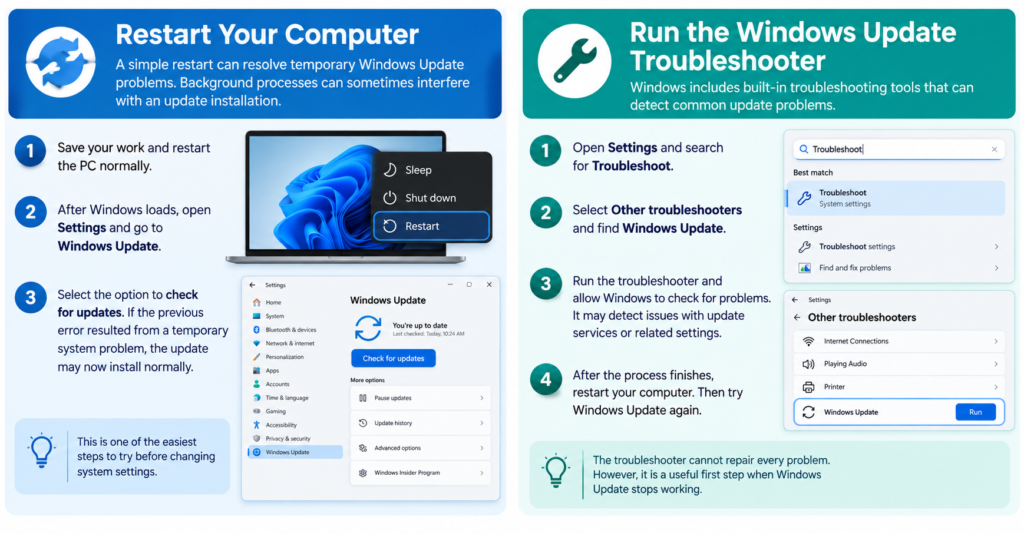
A simple restart can resolve temporary Windows Update problems. Background processes can sometimes interfere with an update installation.
Save your work and restart the PC normally. After Windows loads, open Settings and go to Windows Update.
Select the option to check for updates. If the previous error resulted from a temporary system problem, the update may now install normally.
This is one of the easiest steps to try before changing system settings.
Run the Windows Update Troubleshooter
Windows includes built-in troubleshooting tools that can detect common update problems.
Open Settings and search for Troubleshoot. Select Other troubleshooters and find Windows Update.
Run the troubleshooter and allow Windows to check for problems. It may detect issues with update services or related settings.
After the process finishes, restart your computer. Then try Windows Update again.
The troubleshooter cannot repair every problem. However, it is a useful first step when Windows Update stops working.
Check Available Storage
Windows needs enough free storage to download and install updates. If your system drive is almost full, an update may fail.
Open File Explorer and check the available space on your Windows drive. The system drive is usually the C: drive.
Remove unnecessary temporary files, old downloads, or unused applications if space is low. Windows also provides storage management tools that can help remove temporary data.
After freeing space, restart the computer and check for updates again.
Make Sure Windows Update Services Are Running
Windows Update depends on several background services. If an important service stops, updates may not download or install correctly.
Press Windows + R to open the Run window. Enter services.msc and press Enter.
Find Windows Update in the list. Check whether the service is running. If it has stopped, you can restart it from the service controls.
The Background Intelligent Transfer Service can also affect update downloads. Check its status if Windows continues to have problems downloading updates.
Avoid changing unrelated services. Incorrect service settings can cause other Windows features to stop working.
Reset the Windows Update Cache
A damaged update cache can cause repeated download or installation failures. Resetting the update components can help when basic troubleshooting does not work.
First, open Command Prompt with administrator permissions. Windows may ask for permission before opening it.
Stop the Windows Update-related services before clearing their temporary data. Then rename the SoftwareDistribution folder so Windows can create a fresh update cache.
Restart the required services afterward. Finally, restart your computer and check Windows Update again.
This method is more advanced than the built-in troubleshooter. Follow each command carefully and avoid changing unrelated system folders.
Repair Corrupted Windows System Files
Damaged system files can also cause Windows Update errors. Windows provides built-in commands that can check and repair these files.
Open Command Prompt as an administrator and run System File Checker with the sfc /scannow command.
Allow the scan to finish. Do not close the Command Prompt while Windows checks the system.
If Windows reports that it found and repaired damaged files, restart your computer. Then try the update again.
You can also use the Deployment Image Servicing and Management tool when deeper Windows component problems exist. DISM can repair the Windows component store that SFC relies on.
Disconnect Unnecessary Hardware
External devices can occasionally interfere with Windows installation processes.
Disconnect unnecessary USB drives, external storage devices, printers, and other accessories. Keep your keyboard, mouse, monitor, and essential hardware connected.
Then restart Windows and try the update again.
This step is especially useful when an update downloads successfully but fails during installation or restart.
Check the Windows Update Error Code
Windows may display an error code when an update fails. That code can provide useful information about the cause.
For example, an error may relate to downloading files, missing system components, storage, drivers, or update services.
Write down the exact code before searching for a solution. A specific error code is usually more useful than a general message saying that the update failed.
Avoid downloading random repair programs simply because they claim to fix a particular Windows Update error. Some third-party tools can create additional problems.
Update Device Drivers
Outdated or incompatible drivers can sometimes cause problems during Windows updates.
Open Device Manager and check for devices showing warning symbols. Pay particular attention to graphics, network, storage, and chipset-related devices.
Install drivers from your computer manufacturer’s official support resources when necessary.
Do not install several unrelated driver packages at once. Make one change at a time so you can identify what solved the problem.
Pause and Resume Windows Updates
Windows lets you temporarily pause updates. This can sometimes help reset the update process.
Open Windows Update in Settings and pause updates if the option is available. Wait briefly, then resume updates.
Afterward, select the option to check for updates again.
This method is simple and does not remove personal files or applications. It can be worth trying before using more advanced repair methods.
What to Do If Windows Update Is Still Failing
If you have tried the common solutions and Windows Update still fails, check whether the problem affects one update or every update.
A single failed update may have a specific compatibility problem. Repeated failures across different updates can indicate a deeper Windows configuration or system-file issue.
You can also check Microsoft’s Windows support options for the exact error code. If the computer belongs to an employer or school, contact the system administrator before making advanced changes.
For a personal computer, creating a backup before major repairs is also a sensible precaution.
How to Prevent Future Windows Update Errors
Keeping enough free storage can reduce update problems. It is also useful to install important Windows updates regularly instead of allowing a large backlog to build up.
Avoid shutting down the computer while Windows is installing an update. Keep the device connected to power during major installations, especially on a laptop.
Use reliable security software and avoid questionable system-cleaning utilities. Finally, keep important files backed up so you can recover them if a major system problem occurs.
Conclusion
Knowing how to fix Windows Update error problems can save time when an update suddenly stops working. Start with your internet connection, a system restart, available storage, and the built-in Windows Update troubleshooter.
If those steps do not work, check Windows services, repair system files, reset the update cache, and investigate the specific error code. More advanced repairs should be performed carefully because incorrect system changes can create additional problems.
The best solution depends on the exact error and what Windows reports during the failed update. By working through the simpler fixes first, you can often restore Windows Update without reinstalling Windows or losing personal files.
FAQs
Why is my Windows Update failing?
Windows Update can fail because of unstable internet access, insufficient storage, damaged update files, stopped services, incompatible drivers, or corrupted Windows system files. The exact error code can help identify the cause.
How do I fix Windows Update quickly?
Restart your computer, check your internet connection, make sure you have enough storage, and run the Windows Update troubleshooter. These steps can resolve many temporary update problems.
How do I fix Windows Update error on Windows 11?
Start by opening Settings and checking Windows Update. Run the Windows Update troubleshooter, restart your PC, and check available storage. If the problem continues, investigate the displayed error code.
Can restarting fix a Windows Update error?
Yes. A restart can clear temporary system problems and restart Windows services. It is worth trying before using more advanced troubleshooting methods.
Why is Windows Update stuck at a percentage?
An update can appear stuck while Windows processes files in the background. Storage problems, damaged update files, slow hardware, or system errors can also cause installation delays.
Can low storage cause Windows Update errors?
Yes. Windows needs available space to download, unpack, and install update files. Freeing space on the system drive can help when an update repeatedly fails.
For more updates visit: RANKIVO