



A Character AI slow response can make a fun conversation frustrating. Messages may take too long to appear, or a reply may stop loading. This can happen because of server problems, a weak internet connection, browser errors or app glitches. Fortunately, a few simple fixes may help you get back to chatting.
The best solution depends on where the problem starts. If Character AI is slow on every device, the service itself may have an issue. However, if it only happens in one browser or on your phone, your settings could be the cause.
This guide explains why Character AI replies become slow and how to fix common problems. You will also learn how to tell whether the issue comes from your device, network or the platform.
Why Is Character AI So Slow to Respond?
Temporary Server Problems
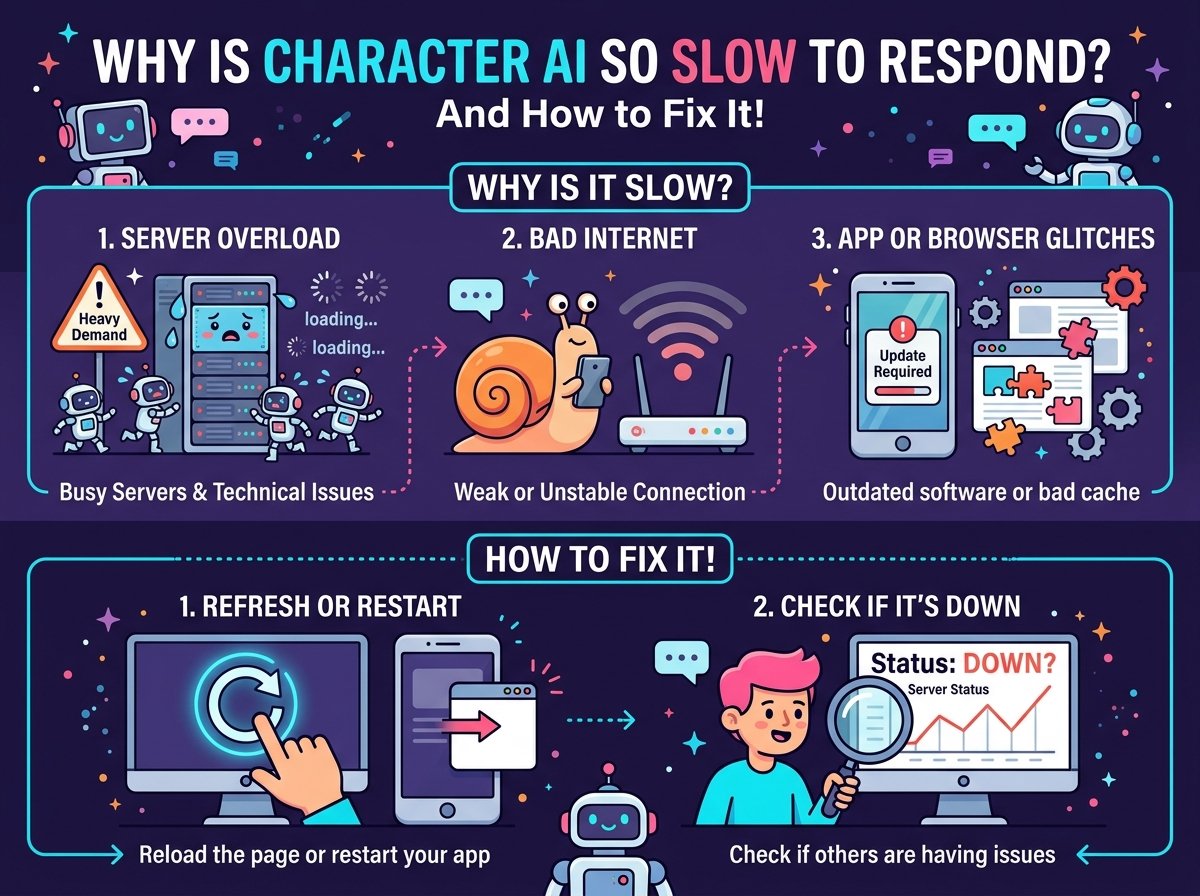
Character AI may respond slowly when its servers experience technical problems. Heavy demand can also affect how quickly messages load and replies appear.
During these periods, you might notice frozen chats, delayed messages or incomplete responses. The same issue may affect both the website and mobile app.
If several users report similar problems, wait a little before trying other fixes. Changing your device settings will not solve a problem that starts on the service’s side.
A Slow or Unstable Internet Connection
Your internet connection plays an important role in chat performance. Even if other websites open, an unstable network can interrupt your Character AI conversations.
Weak Wi-Fi signals, network congestion and sudden connection drops may delay replies. Sometimes, the chat looks frozen even though your message has already been sent.
Try switching from Wi-Fi to mobile data. You can also open another website to check your connection. If Character AI works better on a different network, your original connection may be the cause.
Browser or App Issues
Outdated software and temporary glitches can stop Character AI from working smoothly. Cached website data may also cause problems when files become outdated or corrupted.
Browser extensions can sometimes interfere with website features. On mobile devices, an outdated app may cause loading errors or other performance issues.
To find the cause, try another browser or open the website instead of the app. If one version works well, focus on fixing the version that remains slow.
How to Fix Character AI Slow Response
Refresh the Page or Restart the App
Start with the easiest fix. Refresh the Character AI website or close the mobile app completely. Then open it again and test your conversation.
This step can resolve temporary loading problems. However, it will not fix a wider service outage or a weak internet connection.
Before refreshing, copy any long message you have written. That way, you will not lose your text if the page reloads unexpectedly.
Check Whether Character AI Is Down
First, check whether other users are reporting similar problems. Recent outage reports, community discussions and official announcements may help you spot a service issue.
If many users experience delays at the same time, Character AI may be having a technical problem. In that case, waiting is often better than reinstalling the app.
If other users can chat normally, check your device, browser and network. Keep in mind that third-party outage reports may not show every problem.
Clear Your Browser Cache
Your browser stores website data to help pages load faster. However, outdated or corrupted files can sometimes cause loading errors.
In Google Chrome, open Settings and find the privacy and browsing data options. Choose the option to clear cached files, then reopen Character AI and test your chat.
Be careful when clearing cookies because this may sign you out of websites. If you want to avoid a wider change, try opening Character AI in a private browsing window first.
Does the website work in private browsing? If so, an extension or stored site data may be causing the problem.
Update the Character AI App
If you use Character AI on Android or iPhone, check your app store for updates. New versions may fix bugs and improve compatibility with your device.
After installing an update, restart the app and try sending a message. You should also keep your phone’s software up to date.
Android users can try clearing the app cache through their device settings. The exact steps vary by phone, but the option is usually under Apps and Storage.
On an iPhone, try restarting the app first. If that fails, reinstall it as a later step. Make sure you can sign back into your account before removing the app.
Try Another Browser or Device
Testing another browser can help you find the source of the delay. For example, Character AI may work in Microsoft Edge but remain slow in Chrome.
This could point to a browser setting, extension or stored data problem. You can also test the service on your phone instead of your computer.
If both devices show the same delay, the cause may be your network or Character AI itself. These tests will not prove the exact cause, but they can help narrow it down.
Disable Your VPN or Browser Extensions
A VPN or browser extension can sometimes interfere with website requests. This may prevent parts of Character AI from loading as expected.
If you use a VPN, disconnect it briefly and test the chat again. You can also disable browser extensions one at a time to check whether one is causing the issue.
Only change settings you understand and trust. If disabling an extension makes no difference, turn it back on. There is no need to leave useful security features switched off.
Sign Out and Sign Back In
A temporary login or session problem may affect how Character AI works. Signing out and signing back in can sometimes restore normal access.
Before you sign out, make sure you know your login method. Then close the app or browser, reopen it and sign in again.
If your account remains slow across several devices, the problem may not be limited to your browser. Creating another account is unlikely to fix an underlying service issue.
Wait and Try Again Later
Sometimes, waiting is the most practical solution. Temporary service problems can affect reply times even when your device and internet work normally.
Take a short break and try again later. If the delay disappears without any changes, a temporary issue may have caused it.
If the problem continues, contact Character AI support through its available support options. Explain which device you use, when the delay occurs and whether you see any error messages.
Why Does Character AI Take So Long to Generate Replies?
Character AI needs to process your message before it can produce a response. Reply times can vary with service performance, the conversation and the request itself.
Long conversations may also require more context to be handled. However, a long chat does not always cause slow replies.
If only one conversation feels slow, open a new chat and send a short message. If the new chat works normally, the issue may be limited to the original conversation.
When every chat is slow, check your connection and look for reports of service problems. This approach can save time by helping you focus on the likely cause.
How to Tell Whether the Problem Is Your Device or Character AI
A few simple tests can help you narrow down the problem. Start by checking Character AI on another device or network.
If the website and app are both slow across different devices, a wider service problem becomes more likely. However, your account or network could still be involved.
If mobile data works but Wi-Fi does not, check your home network. When Character AI works in a private browser window, review your extensions and stored website data.
Are other websites slow as well? If they are, your internet connection or device may need attention. If everything else works normally, the problem may be specific to Character AI.
Conclusion
A Character AI slow response can happen because of server problems, weak internet, browser errors or app glitches. Fortunately, several simple steps can help you find the cause.
Start by checking your connection and looking for service outage reports. Next, refresh the page, restart the app or try another browser. If needed, clear cached data or install the latest app update.
Most importantly, check whether the delay affects one chat, your device or the wider service. This will help you choose the right fix without wasting time on unnecessary changes.
FAQs
Why is Character AI taking so long to respond?
Character AI may respond slowly because of server problems, an unstable connection or browser issues. Test another chat and network to help identify the cause.
How do I fix Character AI slow response quickly?
Refresh the page or restart the app first. Then check your internet connection and try another browser. If the problem continues, check for service outage reports.
Is Character AI slow because too many people are using it?
Heavy demand may contribute to slower replies, but it is not the only possible cause. If many users report delays at the same time, a wider service issue may be responsible.
Why does Character AI keep loading without replying?
A weak connection, temporary service problem or browser error may leave a message stuck. Wait briefly, check your connection and refresh the page if needed. Copy any unsent text before refreshing.
Does clearing the cache make Character AI faster?
Clearing cached website data may help when outdated files cause loading problems. However, it will not fix a service outage or a consistently slow internet connection.
Why is Character AI slow on my phone but fast on my computer?
The mobile app may have a temporary glitch or outdated files. Restart the app, check for updates and try Character AI in your phone’s browser. If the website works normally, the problem may be limited to the app.
For more updates visit: RANKIVO