



A ChatGPT black screen can stop you from opening conversations, typing prompts or getting answers. This issue may appear when you first visit the website or refresh an existing chat. Fortunately, several simple fixes can help restore the page. Start with a hard refresh, check your internet connection and look for service problems. If those steps fail, clear your browser data or disable extensions. The right solution depends on whether the problem comes from your browser, device, network or ChatGPT itself.
What Causes the ChatGPT Black Screen?
A black screen does not always mean ChatGPT is down. Your browser may fail to load the scripts and files needed to display the interface. In other cases, a login problem or network interruption can prevent the page from opening.
Browser cache issues are another possible cause. Cached files help websites load faster, but damaged data can sometimes interfere with normal operation. Certain extensions may also block scripts that ChatGPT needs to display messages and menus.
Network settings can create similar problems. VPNs, proxies and security filters may interrupt the connection. Meanwhile, a temporary service outage can leave the page blank or stuck on a loading screen.
Understanding these possible causes helps you choose the right fix. Try the simple methods first, then move to more advanced steps if necessary.
How to Fix the ChatGPT Black Screen
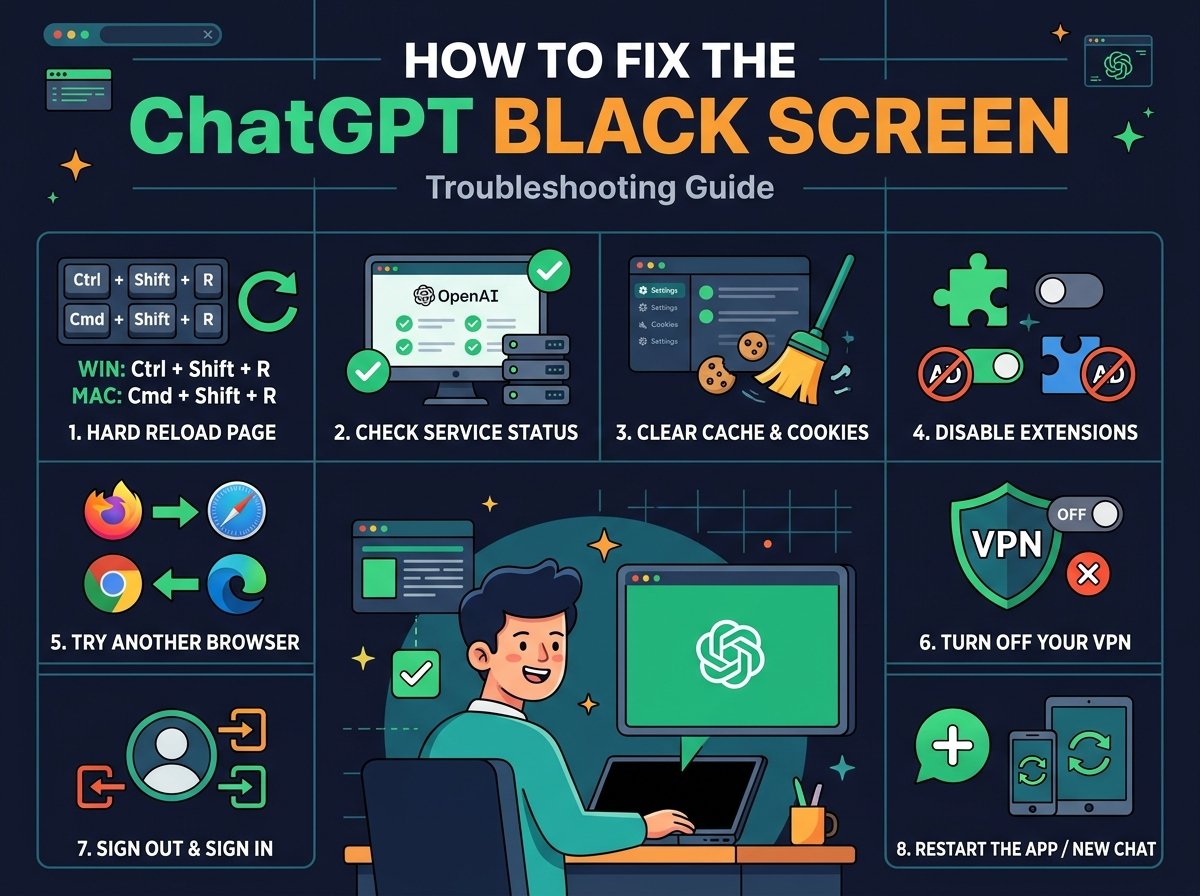
Refresh the Page With a Hard Reload
A hard refresh is one of the easiest ways to fix a ChatGPT black screen. It forces your browser to reload the page instead of relying on its usual cached resources.
On Windows, press Ctrl + Shift + R while the ChatGPT page is open. You can also try Ctrl + F5 in many browsers. Mac users can press Command + Shift + R.
Give the page a few moments to load. If the chat interface returns, cached resources may have caused the problem. However, a persistent black screen means you should try another solution.
Check the ChatGPT Service Status
Sometimes, the problem starts on the service side rather than your device. Checking the official OpenAI status page can help you identify reported outages or performance issues.
Open the status page and look for incidents affecting ChatGPT. If an active incident matches your problem, wait for the service to recover before changing your browser settings.
A normal status report does not rule out every technical issue. Some problems may affect specific users, regions or features. Therefore, continue troubleshooting if the page remains blank.
Clear Your Browser Cache and Cookies
Old browser data can interfere with ChatGPT and prevent the interface from loading. Clearing the relevant site data may resolve blank screens, loading loops and certain login problems.
In Chrome, open Settings and find the privacy and security section. Look for the options to manage site data or delete browsing data. Where possible, remove only the data associated with ChatGPT.
Next, reopen the website and sign in again. The browser may need fresh cookies and local files to start a clean session.
Remember that deleting cookies can sign you out of websites. If the black screen continues, try another fix rather than repeatedly clearing the same data.
Disable Browser Extensions
Browser extensions can sometimes block the scripts that websites need to work. Ad blockers, privacy tools and script blockers are worth checking when ChatGPT displays a blank page.
Open ChatGPT in a Chrome incognito window by pressing Ctrl + Shift + N on Windows. Keep in mind that extensions permitted in incognito mode may still run.
If ChatGPT works in that window, an extension or browser setting could be responsible. Disable your extensions temporarily and test the website again in your regular browser.
Re-enable extensions one at a time to identify the possible conflict. Once you find the cause, adjust or replace the extension instead of removing every useful tool.
Try Another Browser
Your current browser profile may contain settings that prevent ChatGPT from loading. Testing another browser can help you determine whether the problem is limited to your usual setup.
For example, open ChatGPT in another installed browser if Chrome displays a black screen. You can also try a fresh browser profile with no extra extensions.
If the website works elsewhere, focus on your original browser’s settings, extensions and stored data. However, if every browser shows the same problem, investigate your network and the service status.
Turn Off Your VPN Temporarily
A VPN or proxy can sometimes interfere with the connection between your browser and ChatGPT. Network filters and custom DNS settings may also contribute to loading problems.
If you use a VPN, disconnect it temporarily and reload the page. You can also test ChatGPT through a mobile hotspot to see whether another network works.
When the alternative connection solves the problem, your original network settings may need attention. Restore your usual security settings if disabling them makes no difference.
Users on school or workplace networks should contact their network administrator before changing managed settings.
Sign Out and Sign In Again
An interrupted login session can sometimes stop ChatGPT from working as expected. Signing out and signing back in may refresh your session.
If the account menu is available, sign out and then log in using your usual method. After signing in, open a conversation and check whether the page loads normally.
A completely black screen may prevent you from accessing the account menu. In that case, try a private window or another browser before attempting to sign in again.
If the issue returns immediately, the cause may involve something other than your login session.
Open a New Chat or Restart the App
A particular conversation may become slow or unresponsive. Opening a new chat can help you determine whether the issue affects one conversation or the entire interface.
For desktop and mobile apps, close the application completely and reopen it. Check for available updates if the black screen keeps returning.
Mobile users can also switch between Wi-Fi and mobile data. If the app remains unresponsive, test ChatGPT through a browser to compare the results.
Reinstalling the app may help with persistent app-specific problems. Before doing so, make sure you can sign back into your account.
How to Identify the Cause of the Problem
The way ChatGPT behaves across different environments provides useful clues. If a hard refresh solves the issue, cached page resources may have been involved. When a private window works but your normal browser does not, check extensions and profile settings.
A different network offers another useful test. If ChatGPT works on mobile data but fails on Wi-Fi, your original network may be causing the problem.
Problems across several browsers and devices may point to a wider service issue or a network restriction. However, these tests provide clues rather than a guaranteed diagnosis.
Also, distinguish a completely black page from a chat that loads but never finishes generating a response. A blank interface may involve a display or loading problem, while a stalled response may indicate a connection or generation issue.
When Should You Contact OpenAI Support?
Contact support if ChatGPT remains unavailable after you have tried the basic fixes. This step is especially useful when the issue affects several browsers, devices and networks.
Before contacting support, note when the problem began and what happened beforehand. Include your browser or app version, operating system, error messages and the steps you have already tried.
A screenshot may help explain the issue, provided it does not expose private conversations or sensitive information. Support may also request technical diagnostic details when investigating persistent browser problems.
Never share your password, authentication codes or session cookies. Diagnostic files can contain sensitive information, so submit them only through an appropriate support channel.
If the status page reports an active incident, wait for updates before repeating every troubleshooting step. This approach saves time and avoids unnecessary changes to your device.
Conclusion
A ChatGPT black screen can interrupt your work, but several straightforward fixes may restore access. Start with a hard refresh and check the official service status. Next, test your browser, clear the relevant site data and disable conflicting extensions.
If the problem persists, investigate your VPN, network connection, login session or app installation. Change one setting at a time so you can identify what actually helps.
When ChatGPT remains unavailable across different devices and networks, contact OpenAI Support with clear details. A systematic approach makes troubleshooting easier and helps you avoid unnecessary changes.
FAQs
Why is ChatGPT showing a black screen?
ChatGPT may display a black screen because of corrupted browser data, conflicting extensions, network restrictions, login problems or a temporary service issue. Start with a hard refresh, then test the website in a private window.
How do I fix the ChatGPT black screen in Chrome?
Press Ctrl + Shift + R on Windows to perform a hard refresh. If that fails, open an incognito window, disable extensions temporarily and clear the relevant site data if needed.
Can a ChatGPT outage cause a black screen?
Yes, a service disruption may prevent ChatGPT from loading correctly. However, browser and network problems can cause similar symptoms. Check the official OpenAI status page before making major changes.
Why is ChatGPT black on my phone?
The mobile app may have frozen or encountered a connection problem. Close and reopen it, switch networks and check for updates. You can also open ChatGPT in your mobile browser to compare the results.
Will clearing the browser cache fix ChatGPT?
Clearing the relevant site data may help when outdated or corrupted files interfere with the website. However, this method will not resolve every network issue or service outage. Removing cookies may also sign you out.
What should I do if ChatGPT still shows a black screen?
Test ChatGPT in another browser, on another device and through a different network. If the issue continues, check the service status and contact OpenAI Support with the error details and troubleshooting steps you have tried.
For more updates visit: RANKIVO