


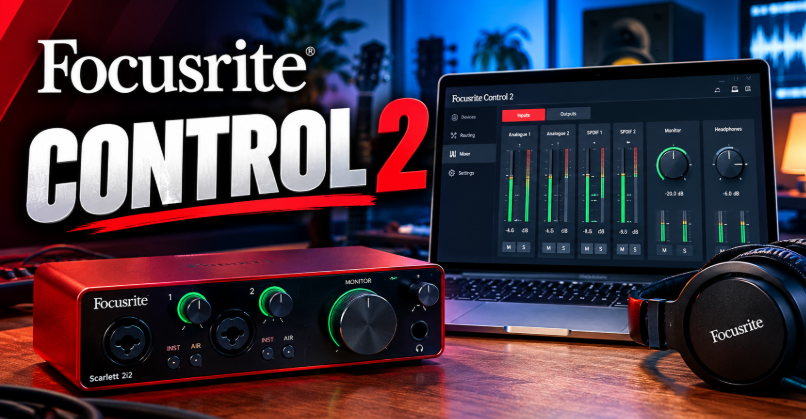

Focusrite Control 2 is desktop software that lets you manage compatible Focusrite audio interfaces on Windows and macOS. It helps musicians, podcasters, streamers and home-studio users adjust recording levels, configure monitoring, manage audio routing and access supported hardware features. Instead of relying entirely on the physical controls on your interface, you can manage many settings directly from your computer. The software also supports a compatible mobile app for remote control. However, its available features depend on your interface model and operating system.
What Is Focusrite Control 2?
Focusrite Control 2 is a control application designed for compatible Focusrite audio interfaces. It provides a central place to adjust supported hardware settings and configure your recording or monitoring setup.
The software is particularly useful when you record vocals, instruments, podcasts or other audio. You can manage available input settings, monitor signal levels and customise mixes without constantly reaching for your interface.
It is not a digital audio workstation (DAW). Programs such as recording and music-production software handle tasks such as arranging tracks, editing performances and mixing recorded audio. Focusrite Control 2 instead manages supported interface functions and helps your hardware work with your recording setup.
Its exact controls depend on the connected device. Therefore, checking compatibility before downloading the application is essential.
What Can You Do With Focusrite Control 2?
Adjust Input Settings
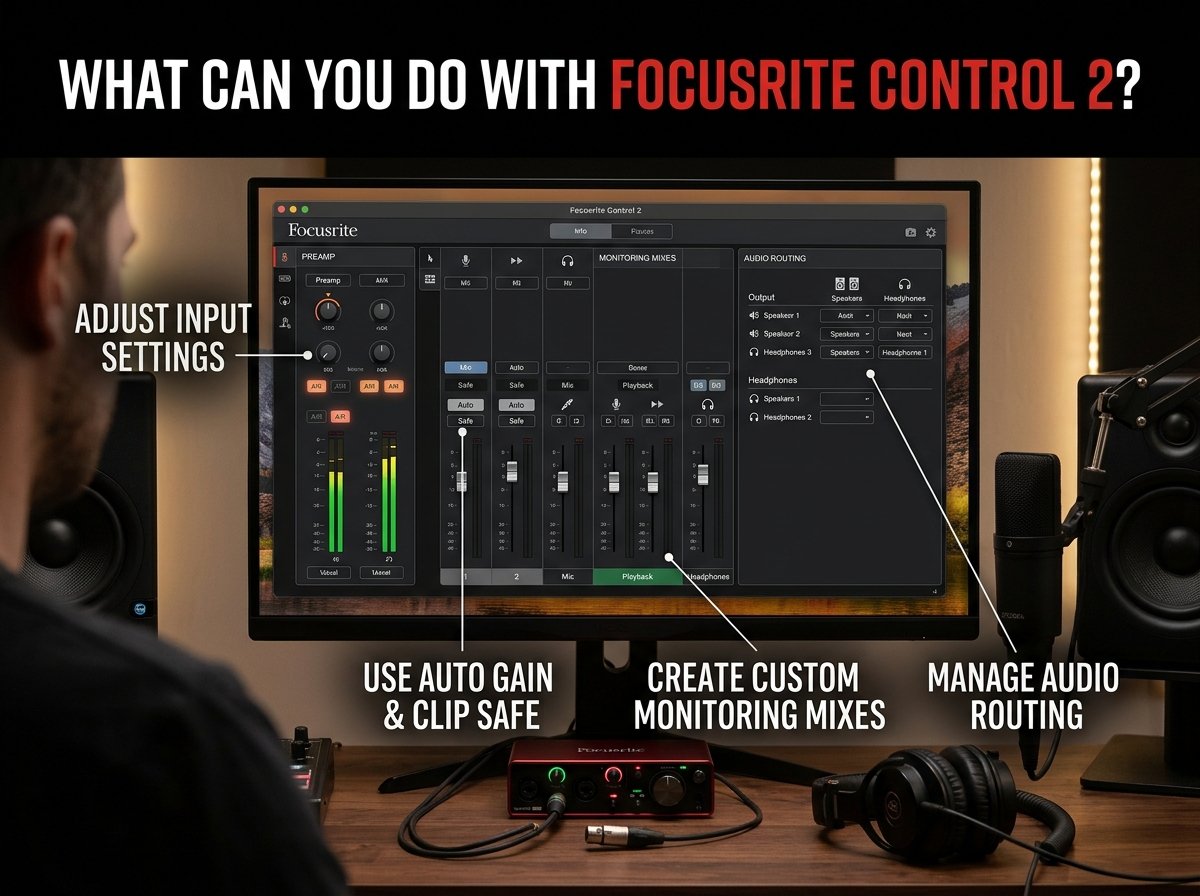
Focusrite Control 2 lets you manage supported preamp controls from your computer. This can make recording more convenient when your audio interface sits out of reach.
Depending on your model, you can adjust input gain and access features such as Air mode. The application also provides visual level information to help you monitor incoming signals.
Setting an appropriate recording level matters. If your input is too quiet, the recording may require additional gain later. If the signal clips, it can introduce unwanted distortion. Watch the meters while performing at a realistic volume.
Use Auto Gain and Clip Safe
Compatible devices offer tools designed to make input-level management easier. Auto Gain helps establish a suitable recording level, while Clip Safe helps protect against unexpectedly loud signals on supported interfaces.
These features are especially useful when recording several microphones or instruments. Some compatible models support Multi-channel Auto Gain, which can simplify level setting across multiple preamps.
However, availability varies by interface. Do not assume that every Scarlett model includes every feature. Check the controls shown for your specific device before planning a recording session around them.
Create Custom Monitoring Mixes
Monitoring lets you hear your microphone, instrument or playback while recording. Focusrite Control 2 provides mixing and routing controls for compatible interfaces, helping you customise what reaches your headphones or speakers.
For example, a singer might need a clear vocal signal with a backing track. A podcaster may prefer a balanced mix of their microphone and other participants. A musician recording multiple instruments might need a different balance for each performer.
The available mixing options depend on the interface. Models with more outputs generally provide more routing possibilities than entry-level devices.
Manage Audio Routing
Audio routing determines where input and playback signals go. With supported interfaces, Focusrite Control 2 lets you configure these connections through its routing and mixer controls.
This is important when working with several headphones, speakers, microphones or digital audio sources. A suitable routing setup can help you send the correct signals to the right destinations.
If audio appears in your DAW but does not reach your headphones, review both the software’s output settings and the interface routing. The problem may involve either configuration rather than a faulty device.
Which Devices Support Focusrite Control 2?
Compatibility depends on the generation and model of your Focusrite interface.
The supported range includes the complete Scarlett fourth-generation family, the complete Scarlett third-generation family, and selected Scarlett second-generation models. The second-generation models supported are the 6i6, 18i8 and 18i20.
Compatible Clarett+ and Clarett USB interfaces are also supported, along with the ISA C8X when using an appropriate software version.
Focusrite’s release notes and product information should be your first reference because support can change as new versions arrive. Some devices or features may require a particular application version or firmware update.
If you own an older interface that does not support Focusrite Control 2, you may need a different Focusrite application. Downloading the wrong control software can lead to confusion when your device fails to appear.
How to Download and Install Focusrite Control 2
Check Your Interface and Computer
Before installing anything, identify your exact interface model and generation. Then check that your Windows or macOS version meets the software’s current requirements.
This step is important because a compatible interface does not automatically mean that every operating system version is supported. Mobile app compatibility also differs from desktop compatibility.
Download the Correct Software
Obtain Focusrite Control 2 from Focusrite’s official software or support pages. Avoid unofficial download sites, which may offer outdated installers or files that have been modified.
Choose the installer for your computer and follow the installation instructions. On Windows, follow any prompts relating to the software and audio driver. On macOS, complete any system permission steps that the installer or operating system requests.
Connect and Open Your Interface
After installation, connect your compatible audio interface using the recommended cable and port. Power it on if required, then open Focusrite Control 2.
The application should identify a supported connected device. If it does not, check the cable, USB connection, power supply and software compatibility before reinstalling everything.
Some interfaces may also need a firmware update. Follow the application’s instructions carefully and avoid disconnecting the device while an update is running.
Can You Use Focusrite Control 2 on a Phone?
Yes. Focusrite offers a companion mobile application for compatible devices. It can pair with the desktop application to provide remote control of supported settings from an iOS or Android device.
This can be useful when your audio interface is positioned away from your recording seat. For instance, you may want to adjust monitoring levels without walking back to your computer.
The mobile application is not a universal replacement for the desktop software. Its supported interfaces and available controls are more limited. Focusrite currently identifies Scarlett fourth-generation devices and the ISA C8X as supported for mobile control.
For the connection to work, install the desktop application first and follow Focusrite’s pairing instructions. Keep the computer and mobile device on the same network when required.
Focusrite Control 2 Troubleshooting
Focusrite Control 2 Is Not Detecting the Interface
First, confirm that your model supports the application. Then reconnect the interface, try a suitable USB port and check the cable.
Close and reopen the software if the device still does not appear. You should also confirm that you installed the correct software version and any required drivers. If the problem continues, consult the official troubleshooting guidance for your particular interface.
There Is No Sound in the Headphones
Check the headphone connection and volume before changing advanced settings. Next, confirm that your DAW is using the correct audio device and output channels.
Review the monitoring mix and routing in Focusrite Control 2. Make sure the relevant input or playback signal reaches the output connected to your headphones.
Also check whether direct monitoring is enabled where appropriate. The exact process depends on your interface and how you want to hear the incoming signal.
The Microphone Is Too Quiet or Distorted
Start by checking the microphone connection and input type. If you use a condenser microphone, confirm whether it requires 48V phantom power and whether your interface supports the necessary setting.
Adjust the gain while speaking or performing at your usual volume. Watch the input meter and avoid pushing the signal into clipping.
Auto Gain may help on compatible devices, but it cannot correct every recording problem. Microphone placement, room noise, cable quality and the source itself can also affect the result.
The Application Will Not Open or Update
Restart your computer and check whether your operating system supports the installed version. If the application opens, use its update option to check for a newer release.
If it will not launch, consult Focusrite’s current release notes for known issues and fixes. Reinstalling may help in some cases, but first make sure you have the correct installer for your device and operating system.
Is Focusrite Control 2 Free?
Focusrite provides Focusrite Control 2 as software for compatible hardware. You can obtain the installer through its official website without purchasing a separate third-party control application.
However, access to the software does not make every interface feature available on every model. Your connected hardware determines which controls, routing options and monitoring features you can use.
You should also distinguish the control application from bundled recording software, plugins or other products that may come with a particular interface purchase. Their availability and licensing terms can differ.
Conclusion
Focusrite Control 2 makes it easier to manage compatible Focusrite interfaces from a computer. Its input controls, monitoring tools, routing options and supported recording features can simplify home-studio and professional workflows.
Before installing it, confirm your interface model, operating system and software requirements. If you experience connection or audio problems, check device compatibility, driver installation, DAW settings and routing before assuming that your hardware is faulty. With the correct setup, Focusrite Control 2 can provide a more convenient way to manage your recording environment.
FAQs
What is Focusrite Control 2 used for?
Focusrite Control 2 manages compatible Focusrite audio interfaces. It provides controls for supported input settings, monitoring mixes, audio routing and other hardware features. The available functions depend on your interface model.
Is Focusrite Control 2 free to download?
Yes, Focusrite provides the application for compatible devices through its official website. Download the version intended for your interface and computer rather than using an unofficial installer.
Which Focusrite interfaces work with Focusrite Control 2?
Supported devices include Scarlett fourth-generation interfaces, Scarlett third-generation interfaces, selected Scarlett second-generation models, Clarett+ and Clarett USB interfaces, and the ISA C8X. Check the latest compatibility information for exact requirements.
Does Focusrite Control 2 work on Windows 11 and macOS?
Focusrite supports Windows 10 64-bit and Windows 11, alongside specified macOS versions. Compatibility can change with software releases, so check the latest requirements before installing it on your computer.
Why is Focusrite Control 2 not detecting my Scarlett interface?
The application may not recognise your interface because of an incompatible model, incorrect software, a connection problem or a driver issue. Check compatibility, reconnect the device and install the appropriate software before trying more advanced troubleshooting.
Can I use Focusrite Control 2 on my phone?
Yes, Focusrite offers a companion mobile app for supported iOS and Android devices. It works with the desktop application and compatible hardware, allowing remote control of selected settings. Mobile support is more limited than desktop support.
For more updates visit: RANKIVO